
The three most common edits — and prompts you can copy right now:
Background swap (completely face-safe):
Replace the background in this photo with [describe scene — e.g. "a soft-focus park at golden hour"]. Keep the person exactly as they are — do not alter their face, hair, clothing, or lighting. Blend the subject naturally into the new background, matching light direction and color temperature. Output: realistic, looks like it was taken on location.
Color grade / filter (face-safe):
Apply a [warm golden hour / cool Nordic / moody cinematic / soft film] color grade to this photo. Do not change the person's face, skin tone, or features — apply the grade only to the overall image tone, shadows, and highlights. Output: natural-looking edit, not over-filtered.
Full retouch with face preserved:
Retouch this portrait: smooth minor blemishes, reduce under-eye shadows, and sharpen the eyes. Preserve the subject's facial identity, bone structure, eye color, and natural skin texture completely — keep real pores and fine lines visible. Do not over-smooth. Output: professional headshot quality, natural and realistic.
Every template in this guide follows the same pattern. The preserve clause is what stops ChatGPT from changing your face.
Why that preserve clause matters — annotated
Take the retouch prompt above and look at what each part actually does:
Retouch this portrait:            ← signals editing task, not image generation
smooth minor blemishes,           ← the specific edit you want
reduce under-eye shadows,
and sharpen the eyes.
Preserve the subject's            ← IDENTITY ANCHOR: locks in who the person is
  facial identity,
  bone structure,                 ← SHAPE LOCK: prevents feature warping
  eye color,                      ← COLOR LOCK: stops eye color drift
  and natural skin texture        ← TEXTURE LOCK: prevents plastic-skin effect
  completely.
Keep real pores and               ← explicit anti-smoothing constraint
  fine lines visible.
Do not over-smooth.               ← negative constraint: tells ChatGPT what NOT to do
Output: professional headshot     ← quality anchor
  quality, natural and realistic.
The preserve clause is doing four jobs at once. Without it, ChatGPT fills in what it thinks a "better" version of your face looks like — which may not be you. ChatGPT re-renders your photo like an artist repainting it from a description; it doesn't make pixel-precise edits the way Photoshop does. Every clause you add narrows what it can change.
12 copy-paste templates
1. Selfie background swap
Face-safe — no preserve needed beyond keeping the person unchanged.
Replace the background in this selfie with [describe scene]. Keep me exactly as I am — do not alter my face, hair, expression, or clothing. Blend my figure naturally into the new scene, matching the lighting direction and color tone. Output: realistic, natural, looks like it was taken there.
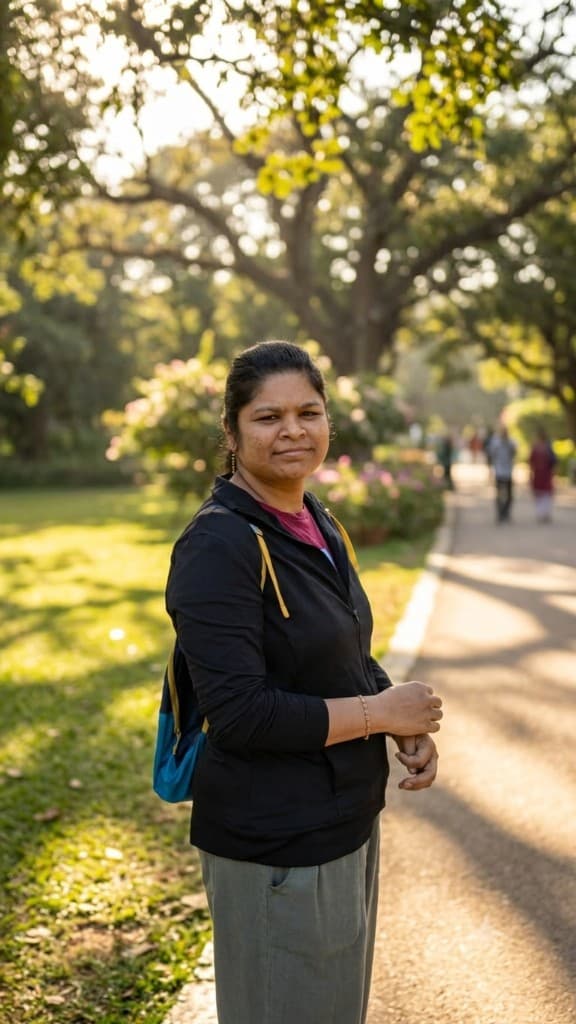
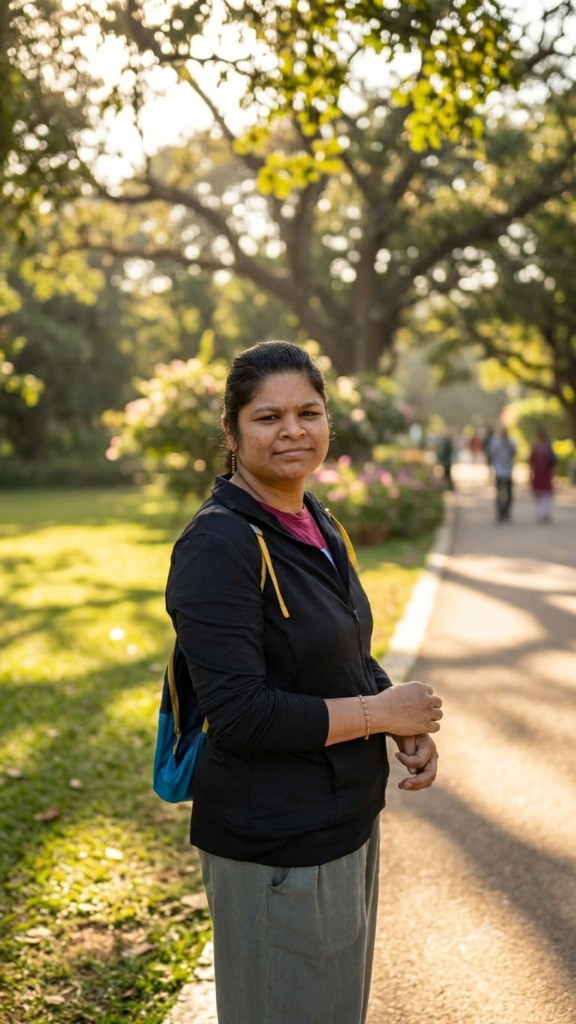
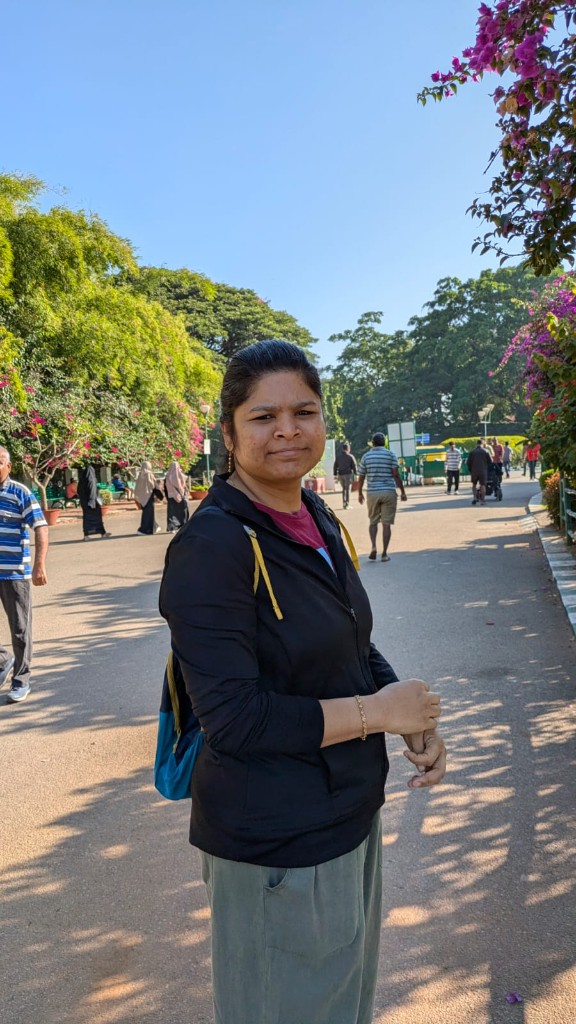
The prompt used: "Replace the background with a soft golden-hour park scene with bokeh greenery. Keep me exactly as I am — do not alter my face, hair, expression, or clothing."
Drag the divider (or use the slider) — left shows before, right shows after.
2. Color grade / Instagram filter
Face-safe — the grade applies to tones, not features.
Apply a [warm golden hour / moody dark / soft faded film / cool blue] color grade to this photo. Apply the grade to the overall image tones — shadows, highlights, mid-tones — only. Do not change my face, skin tone, or any features. Output: natural-looking, not over-filtered.
3. Golden hour lighting enhancement
Face-safe — preserve skin tone to prevent an orange cast.
Enhance this photo with a golden hour lighting look: warm the highlights and mid-tones toward amber and gold, add a soft directional glow from one side. Preserve my natural skin tone — do not make my skin overly warm or orange. Do not alter my facial features. Output: warm, luminous, natural golden light.
4. LinkedIn / professional headshot polish
Medium risk — standard preserve + anti-smoothing needed.
Edit this photo into a professional LinkedIn headshot: even out the lighting, apply a natural skin retouch (smooth minor blemishes, reduce under-eye shadows), and replace or blur the background to a soft neutral gradient. Preserve my facial identity, bone structure, and eye color exactly. Do not over-smooth skin — natural skin texture, pores, and fine lines should remain visible. Output: approachable, professional, natural — suitable for a senior professional profile.
5. Blemish and spot removal
Medium risk — explicit instruction not to touch permanent features.
Remove visible blemishes, acne spots, and temporary skin imperfections from this photo. Do not alter permanent features — freckles, moles, skin tone, and natural skin texture should stay exactly as they are. Preserve my facial identity, bone structure, and eye color completely. Keep the skin looking like real human skin — texture intact. Output: clean, natural, not over-processed.
6. Under-eye shadow reduction
Medium risk — tone matching matters to avoid a patchy result.
Reduce the dark under-eye circles in this photo. Lighten the under-eye area naturally — match the lightened tone seamlessly to the surrounding skin so there is no visible transition. Do not make the area flat, painted, or unnatural. Preserve all other facial features, skin tone, and photo composition exactly.
7. Studio relighting
Medium risk — lighting affects how features appear, so preserve the face explicitly.
Relight this portrait to a soft studio key light: large softbox at 45 degrees to the subject, gentle fill light from the opposite side. Preserve my facial identity, bone structure, and natural skin tone completely — the relighting should improve the light, not change how I look. Output: professional studio portrait quality, natural and flattering.
8. Natural skin retouching
Higher risk — use full preserve + negative constraints.
Apply a natural skin retouch to this portrait: smooth uneven skin tone, minimize visible pores slightly, and remove any temporary blemishes. Preserve my facial identity, bone structure, eye color, and natural skin texture completely — keep real pores and fine lines visible so the result looks like real skin. Do not over-smooth, do not alter facial proportions, and do not change my skin tone. Output: polished, natural, professional headshot quality.
9. Eye enhancement
Higher risk — lock eye shape and color explicitly.
Enhance the eyes in this portrait: brighten the whites slightly, add a subtle catch-light in the iris if one is missing, and sharpen the iris and lash detail. Do not change my eye color, eye shape, or eye size — enhance only the existing eyes. Keep the enhancement subtle and realistic — natural depth and clarity, not an artificial "edited" look. Preserve everything else in the photo unchanged.
10. Old or faded personal photo restoration
Higher risk — reconstruct detail without inventing new features.
Restore this old or faded photo: reconstruct lost detail, repair any scratches or fading, sharpen faces and objects, and improve color accuracy. Preserve the visible facial features exactly as they appear in the original — reconstruct sharpness and clarity, but do not change the appearance of any person's face, proportions, or features. Output: restored photograph, realistic, true to the original people and scene.
11. Group or family photo
Unique challenge — every face needs individual protection.
Edit this group photo: [describe the edit — e.g. "apply a warm color grade and soften the background"]. Preserve every person's facial identity individually — do not alter any facial features, expressions, skin tone, or proportions for any individual in the photo. Apply the edit to the overall scene only. Output: natural, professional, all faces unchanged.
12. Complete profile photo retouch
Higher risk — use the full suite of constraints.
Apply a complete professional retouch to this profile photo: (1) smooth minor blemishes while preserving skin texture, (2) brighten and sharpen the eyes, (3) reduce under-eye shadows, (4) even out skin tone, (5) replace the background with a soft neutral blur. Preserve my facial identity, bone structure, eye color, skin tone, and natural skin texture completely — no over-smoothing, no feature changes, no altered proportions. Output: polished, natural, professional — suitable for LinkedIn or a speaker profile.
What not to type — bad prompt vs fixed prompt
| Instead of this... | Use this |
|---|---|
"Make me look better" | "Improve the lighting and reduce under-eye shadows. Preserve my facial identity, bone structure, skin tone, and natural skin texture exactly." |
"Retouch this selfie" | "Retouch this selfie: smooth minor blemishes. Preserve my facial identity, bone structure, and natural skin texture — do not over-smooth or alter any features." |
"Make it look professional" | "Apply a professional headshot grade: even lighting, neutral background. Do not alter my face, hair, or expression." |
"Enhance my appearance" | "Apply a natural skin retouch and warm color grade. Preserve my facial identity, bone structure, and eye color exactly — no feature changes." |
"Edit this photo" | "Apply a [specific edit]. Preserve my facial identity, bone structure, eye color, and natural skin texture completely. Do not alter any facial features." |
The pattern: every vague instruction that could touch your face needs a preserve clause added.
When the first result still doesn't look right
If ChatGPT drifts the face on the first attempt, type one of these follow-ups in the same chat — no re-uploading needed:
If the face changed:
The face looks different from the original. Redo this edit — apply only [the specific edit you wanted] while keeping my face, bone structure, and features identical to the original photo I uploaded. Do not change anything about how I look.
If the skin looks plastic or over-smoothed:
The skin looks over-smoothed and artificial. Redo with natural skin texture preserved — pores and fine lines should still be visible. Significantly reduce the skin smoothing and keep it looking like real human skin.
If eye color or shape changed:
The eyes look different from the original. Redo this edit keeping my exact eye color, shape, and size from the original photo — do not alter the eyes at all. Apply the rest of the edit as specified.
These work because ChatGPT maintains context within the conversation — it has the original photo and your previous instruction already, so the correction is specific and fast.
When to use ChatGPT vs a different tool
- ChatGPT (GPT-4o, Plus required): background swaps, color grades, lighting edits, minor retouching with preserve constraints — best for natural-language, conversational editing
- Facetune / Lightroom AI masking: when you need 100% pixel-precise face control with non-destructive editing on the original file
- Adobe Firefly generative fill: removing specific objects very close to the face without touching the face itself
- The rule: the more the edit directly involves your face, the stronger the preserve clause needs to be. If the edit IS your face — changing eye shape, nose, bone structure — use a dedicated retouching tool instead of ChatGPT
Frequently Asked Questions
Why does ChatGPT keep changing my face when I edit photos?
ChatGPT re-renders your photo rather than making pixel-level edits. When you don't include a preserve clause, the model fills in what it thinks a "better" version looks like — which may not be you. Add explicit preserve language to every prompt that involves your face.
What is the best ChatGPT prompt to edit a photo without changing the person's face?
Any edit prompt plus a four-part preserve clause: identity anchor, shape lock, color lock, and texture lock. See the annotated breakdown above and template 12 for the full version.
Can I use ChatGPT to retouch skin without altering my facial features?
Yes — use template 8 above. The key additions are "natural skin texture" and "keep real pores and fine lines visible." Without these, ChatGPT may produce an over-smoothed, plastic-looking result.
How do I change the background of a photo in ChatGPT without affecting the person?
Background replacement is completely face-safe. Use template 1 above — the face is not in the edit path at all, so no preserve clause is needed beyond "keep the person exactly as they are."
Does ChatGPT Plus preserve facial identity better than the free version?
The free tier cannot output edited images — ChatGPT Plus ($20/month) is required. Within Plus, GPT Image 1.5 (May 2026) significantly improved facial identity preservation. Explicit preserve constraints still produce the most reliable results.
Can ChatGPT edit multiple people in a photo without changing anyone's face?
Yes — use template 11 and include "Preserve every person's facial identity individually." If one face still drifts, add a follow-up correction in the same chat specifying which person.
Related guides
- The ChatGPT photo enhancement prompt — the exact prompt to enhance any photo, with before/after examples
- 50+ ChatGPT prompts for photo editing — every edit type covered — the full library including color grading, background removal, product enhancement, and social media edits
- ChatGPT 4K photo enhancement prompts — enhance and sharpen after editing — upscale and improve quality once your edit is complete
- ChatGPT upscale image prompt guide — 6 copy-paste templates — final step after editing: upscale to 4K quality
- 80s photo prompts — glamour shot, yearbook and prom portraits — period restyles that use the same preserve-identity clauses, applied to hair, wardrobe and lighting
All prompts tested with GPT-4o (ChatGPT Plus) as of June 2026. Results may vary with model updates — use the follow-up fix prompts in the same conversation to course-correct.