
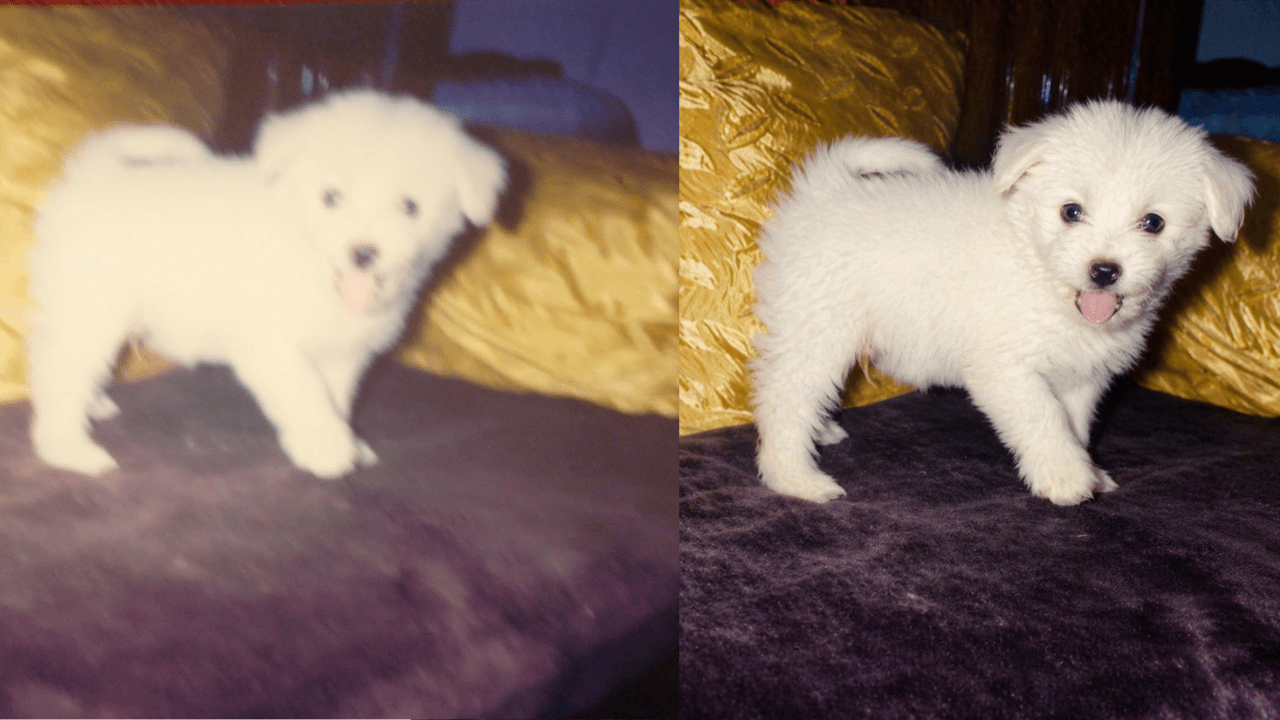
"Upscale this photo" typed alone into ChatGPT produces mediocre results. The AI needs four things: what the photo shows, what to preserve, what to improve, and what quality level to target. This guide gives you 6 copy-paste prompts built on that structure — plus a clear answer to the most common upscaling question: does ChatGPT actually upscale, or is it doing something else?
If you want type-specific enhancement prompts (portrait, landscape, product, restoration), the ChatGPT 4K photo enhancement prompts guide has 10 targeted templates.
Does ChatGPT actually upscale images?
Short answer: no — but it does something useful.
ChatGPT with DALL-E 3 or GPT-4o re-renders the uploaded image. It interprets the scene and outputs a new version with more perceived detail and sharpness. The output file stays at a fixed pixel count (typically around 1024×1024 or 1792×1024). That is not true upscaling.
True upscaling means taking an existing file and outputting a new file with more actual pixels. That requires dedicated tools: Topaz Photo AI, Magnific AI, or Adobe Firefly's Enhance.
So the recommended workflow is:
- Use a ChatGPT upscale prompt (from this guide) to get the best-quality re-render.
- Pass that output through Topaz or Magnific for genuine pixel upscaling.
You get creative quality improvement from ChatGPT and actual resolution increase from the dedicated tool. See AI upscale image to 4K: sample prompts for a full comparison.
The four-part upscale prompt structure
Every effective ChatGPT upscale prompt follows this structure:
Part 1 — Action: Upscale / re-render this photo to 4K ultra-high resolution. Part 2 — Preserve: Same subject, pose, composition, and background as the original. Part 3 — Improve: Sharpen fine detail, reduce noise, remove JPEG artifacts, improve color. Part 4 — Output: Tack sharp, photorealistic, 4K ultra HD, professional RAW photography look.
6 copy-paste ChatGPT upscale image prompts
1. General upscale (any photo)
"Upscale this uploaded photograph to 4K ultra-high resolution. Preserve the original subject, pose, and composition. Sharpen fine detail throughout, reduce noise and compression artifacts, and improve color accuracy. Do not change the scene or add new elements. Output: photorealistic, tack sharp, 4K ultra HD, professional RAW photography look."
2. Portrait upscale
"Upscale this portrait to 4K quality. Keep the same person and expression — do not change the face, hair, or clothing. Enhance eye and hair detail, improve natural skin texture without plastic smoothing, and correct any color cast. Output: 4K ultra HD, tack sharp, studio-quality portrait, true-to-life skin tones, publication-ready."
3. Landscape upscale
"Upscale this landscape photograph to 4K ultra-high resolution. Preserve the original scene, framing, and color palette. Sharpen foreground texture, midground detail, and background elements. Improve dynamic range — recover shadow detail and highlight clarity without over-processing. Output: 4K ultra HD, RAW photography quality, cinematic clarity, tack sharp throughout."
4. Old or low-quality photo upscale
"Upscale and restore this old or low-quality photograph to 4K quality. Reconstruct missing or blurry detail, repair compression artifacts or grain, sharpen edges and faces. Preserve the original composition and subject identity — do not invent new elements. Output: 4K resolution, photorealistic detail reconstruction, sharp and clean, authentic feel."
5. Product photo upscale
"Upscale this product photograph to 4K ultra-HD quality. Preserve the original product exactly — do not change colors, shape, or composition. Sharpen all edges and surface textures (glossy, matte, fabric, metal). Remove background noise. Output: 4K resolution, commercial product photography standard, razor-sharp detail, clean background, professional lighting."
6. Group or event photo upscale
"Upscale this group photograph to 4K resolution. Preserve all people in the frame. Improve sharpness and clarity of every face, reduce motion blur where present, and correct uneven lighting across the group. Do not add or remove people. Output: 4K resolution, every face sharp and well-lit, professional event photography quality, natural skin tones, noise-free."
Common mistakes in ChatGPT upscale prompts
No upload: ChatGPT cannot upscale a photo described in text. You must upload the image first.
Missing preservation instruction: Without "preserve the original subject and composition," the AI may reinterpret the scene. Always include what must stay the same.
Expecting true pixel upscaling: ChatGPT's output pixel count is fixed. For files you need at actual 4K dimensions, use Topaz Photo AI or Magnific after ChatGPT.
Vague improvement list: "Make it better" gives the AI no direction. Be explicit: sharpen edges, reduce grain, remove JPEG artifacts, improve color accuracy.
Too short: A one-sentence upscale request misses the quality stack entirely. Stacking 4–6 quality keywords at the end (tack sharp, 4K ultra HD, RAW photography quality, photorealistic) significantly improves the output.
Upscale keyword reference
Append these to any prompt above to increase sharpness and quality:
4K ultra HD— core resolution signaltack sharp— maximum sharpness directiveRAW photography quality— uncompressed detailnoise reduction— removes grainJPEG artifact removal— cleans compression damagedetail reconstruction— rebuilds lost fine detailphotorealistic— natural, non-AI-looking resultpublication-ready— professional output standard
Frequently Asked Questions
What is a good ChatGPT prompt to upscale an image?
Use four parts: upload the photo, state the action (upscale to 4K ultra-high resolution), list what must stay the same (subject, framing), then stack quality terms. The general upscale template at the top of this guide is a reliable starting point for any photo type.
Can ChatGPT actually upscale an image?
ChatGPT re-renders the uploaded image at higher perceived quality rather than performing true pixel upscaling. For genuine file upscaling (more actual pixels), pair the ChatGPT output with Topaz Photo AI or Magnific AI.
How do I write a prompt to upscale an image in ChatGPT?
Upload the photo first, then write: action (upscale to 4K) + preservation (same subject and composition) + improvements (sharpen, denoise, remove artifacts) + output keywords (tack sharp, photorealistic, 4K ultra HD). The six templates in this guide follow this exact structure for different photo types.
What is the difference between ChatGPT upscaling and Topaz Photo AI?
ChatGPT re-renders the scene with higher quality detail; output resolution is fixed. Topaz Photo AI performs true pixel-level upscaling — it produces a larger file with more actual pixels. Use both together for best results: ChatGPT first for quality direction, Topaz after for resolution increase.
Related resources
- The ChatGPT photo enhancement prompt — the exact prompt to enhance any photo, with before/after examples
- ChatGPT 4K Photo Enhancement Prompts — Type-specific enhancement templates (portrait, landscape, product, and more)
- AI Upscale Image to 4K: Sample Prompts — Full comparison of generative vs pixel upscaling with before/after example
- ChatGPT 4K Image Prompts Guide — Generating new images at 4K quality
- ChatGPT 8K Ultra HD Image Prompts — Push resolution even further